Check items to add to the cart or select all
Product Description
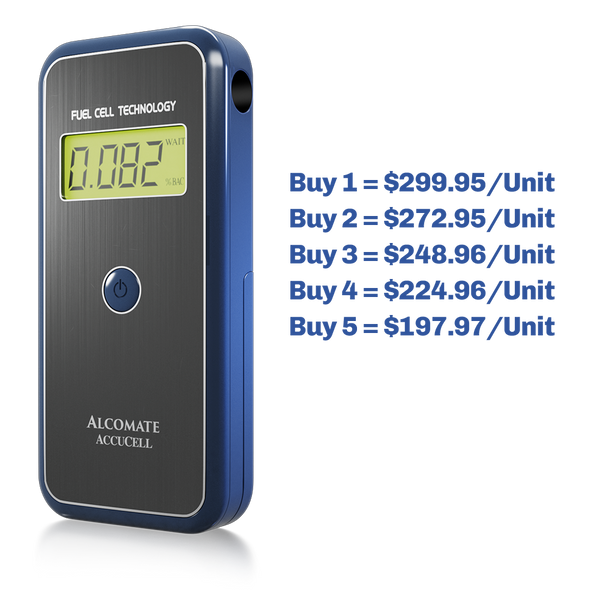
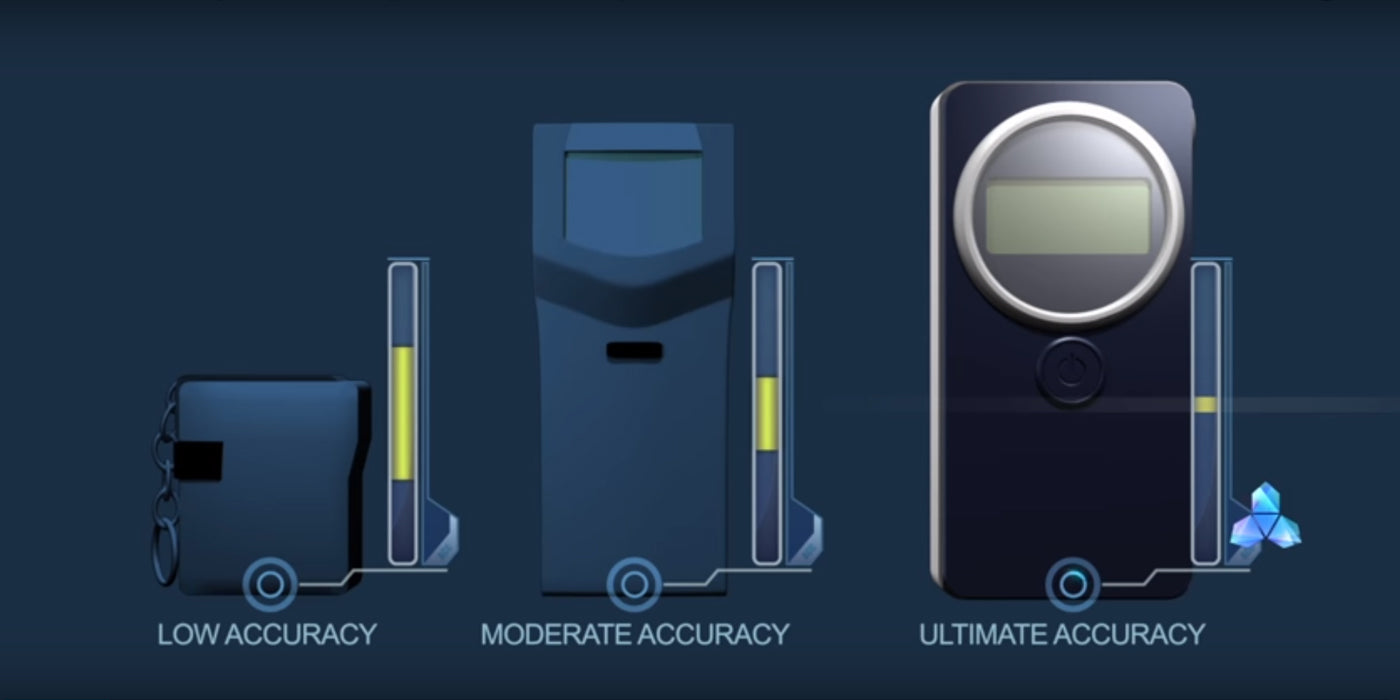
AK Solutions introduces the AlcoMate® AccuCell breathalyzer, the easiest-to-use and most lightweight handheld fuel-cell breath alcohol detector available on the market. The AccuCell breathalyzer incorporates advanced fuel-cell alcohol sensors to provide you with maximum precision and accuracy as well as the ability to handle rigorous high-volume testing without issue.
The optional USB PC-Connect Kit for the AlcoMate® AccuCell allows you to store breath alcohol test results on to a Windows PC and results can be exported conveniently to Excel format. Results can be stored ONLY while the device is connected to a PC running the optional MAX20 software; the device itself DOES NOT have onboard memory.
AccuCell Advantages
- DOT Approved: Accuracy +/-0.005% BAC
- Advanced Fuel-Cell Alcohol Sensors
- 4-Digit LCD Results Display
- Active Pressure Sensor / Deep Lung Air Sampling
- Cumulative Test Counter
- Low Battery Indicator / Auto Power-Off
- Maximum Precision
- Increased Durability for High-Volume Testing
AlcoMate® Premium Device Specifications
| Alcohol Sensor: | Long-life Electrochemical Fuel Cell |
| Operating Temp: | 0 - 40 degrees C (32 - 104 degrees F) |
| Size: | 106 x 50 x 20 mm |
| Weight: | 2.8 oz (including batteries) |
| Battery: | Standard 1.5V AAA (x2, included) |
| Analysis Time: | 10 Seconds or Less up 0.100% BAC |
| Recovery Time: | ~1 Minute Between Consecutive Tests |
| Sampling System: |
Actuated Deep Lung-Air Sampling |
| Detection Range: | 0.000% ~ 0.400% BAC |
| Sensor Accuracy: | +/- 0.005% BAC |
Software Installation Instructions for Windows XP
- 1. DO NOT PLUG THE USB CABLE INTO YOUR PC YET!
- 2. Insert the MAX20 CD into your PC. The serial # on the CD sleeve will be used later, after MAX20 software is installed.
- 3. Navigate to the CD drive on your PC and run (double-click) the file starting with “CP210x”. Follow the onscreen instructions to proceed by clicking “Next” and accepting license terms.
- 4. Toward the end of the setup, you MUST place a check in the box to “Launch the CP210x VCP Driver Installer” and then click “Finish”. Please make sure you do not skip this step.
- 5. Install the CP210x USB to UART Bridge Driver.
- 6. After successfull installation, connect the USB cable to your device and then to your computer. YOU MUST WAIT for your computer to display a message that the device is “ready to use”. Please make note of the COM port (for example COM3 or COM4) that is assigned for troubleshooting.
- 7. Go back to the CD drive on your computer and run (double- click) the “Setup” file to install MAX20. Once this is done, you can connect the AccuCell to your PC and run MAX20.
- 8. In the Registration tab, you can create ID numbers and Names for people being tested. There are 4 default entries. In the Measure tab, you can select one of these IDs, then begin testing. If you are able to click the “Start” button and your device indicates “blow”, then everything is functioning properly.
Software Installation Instructions for Windows 7 or Vista
- 1. DO NOT PLUG THE USB CABLE INTO YOUR PC YET!
- 2. Insert the MAX20 CD into your PC. The serial number on the CD Sleeve will be used later, after MAX20 software is installed.
- 3. Navigate to the CD drive on your PC and run (double-click) the file starting with “CP210x”. Follow the onscreen instructions to proceed by clicking “Next” and accepting license terms.
- 4. Toward the end of the setup, you MUST place a check in the box to “Launch the CP210x VCP Driver Installer” and then click “Finish”. Please make sure you do not skip this step.
- 5. Install the CP210x USB to UART Bridge Driver.
- 6. After sucessful installation, connect the USB cable to your device and then to your PC. You MUST wait for your computer to display a message that the device is either “successfully installed” or “ready to use”. Please make a note of the COM port (for example, COM3 or COM4) that is assigned, if troubleshooting is necessary.
- 7. Go back to the CD drive on your computer and run (double-click) the “Setup” file to install MAX20.
- 8. After MAX20 is installed, navigate to the MAX20 program from your Start Menu (DELETE the shortcut on your desktop). RIGHT-CLICK on the MAX20 program icon in your Start Menu and select “Properties”.
- 9. In the Properties window, select the “Compatibility” tab. Place a check in front of “Run this program in compatibility mode for:” and select “Windows XP (Service Pack 2)” from the drop-down box. Also place a check in front of “Run this program as an administrator”. Click “Apply” then “OK”.
- 10. You can now run the MAX20 program from the Start Menu. In the Registration tab, you can create ID numbers and Names for people being tested. There are 4 default entries. In the Measure tab, you can select one of these IDs, then begin testing. If you are able to click the “Start” button and your device indicates “blow”, then everything is functioning properly.