Check items to add to the cart or select all
Product Description
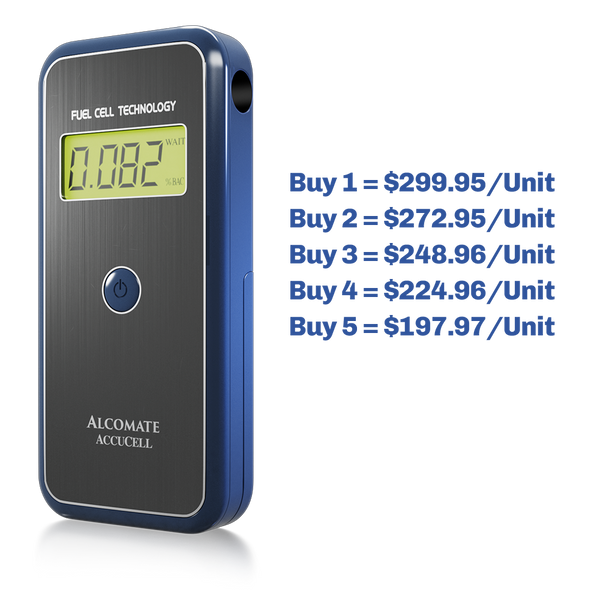
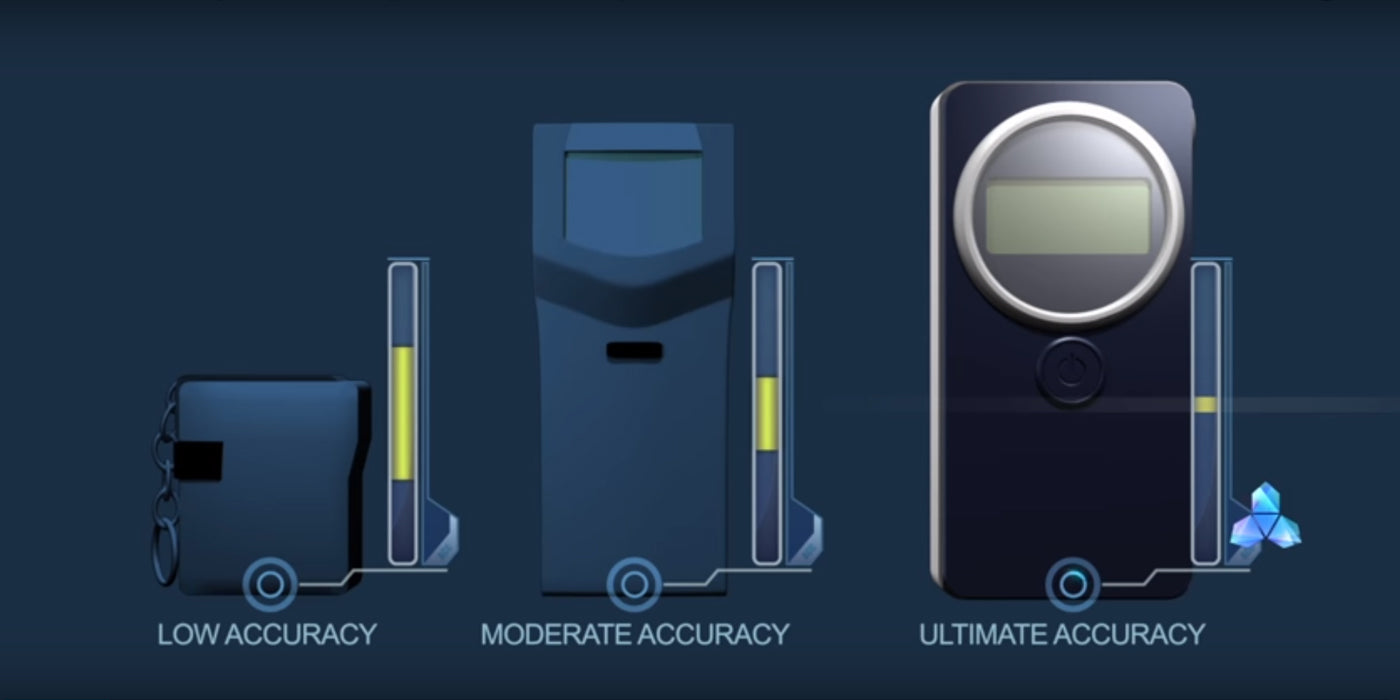
AK Solutions introduces the AlcoMate® AccuCell breathalyzer, the easiest-to-use and most lightweight handheld fuel-cell breath alcohol detector available on the market. The AccuCell breathalyzer incorporates advanced fuel-cell alcohol sensors to provide you with maximum precision and accuracy as well as the ability to handle rigorous high-volume testing without issue.
The optional USB PC-Connect Kit for the AlcoMate® AccuCell allows you to store breath alcohol test results on to a computer (ONLY Windows XP SP2+ OR Windows Vista running XP SP2 emulation with Administrator rights) and results can be exported conveniently to Excel format. Results can be stored ONLY while the device is connected to a PC running the optional MAX20 software; the device itself DOES NOT have onboard memory.
AccuCell Advantages
- DOT Approved: Accuracy +/-0.005% BAC
- Advanced Fuel-Cell Alcohol Sensors
- 4-Digit LCD Results Display
- Active Pressure Sensor / Deep Lung Air Sampling
- Cumulative Test Counter
- Low Battery Indicator / Auto Power-Off
- Maximum Precision
- Increased Durability for High-Volume Testing
AlcoMate® Premium Device Specifications
| Alcohol Sensor: | Long-life Electrochemical Fuel Cell |
| Operating Temp: | 0 - 40 degrees C (32 - 104 degrees F) |
| Size: | 106 x 50 x 20 mm |
| Weight: | 2.8 oz (including batteries) |
| Battery: | Standard 1.5V AAA (x2, included) |
| Analysis Time: | 10 Seconds or Less up 0.100% BAC |
| Recovery Time: | ~1 Minute Between Consecutive Tests |
| Sampling System: |
Actuated Deep Lung-Air Sampling |
| Detection Range: | 0.000% ~ 0.400% BAC |
| Sensor Accuracy: | +/- 0.005% BAC |
Software Installation Instructions
- 1. DO NOT PLUG THE USB CABLE INTO YOUR PC YET!
- 2. Insert the MAX20 CD into your PC. The serial # on the CD sleeve will be used later, after MAX20 software is installed.
- 3. Navigate to the CD drive on your PC and run (double-click) the file starting with “CP210x”. Follow the onscreen instructions to proceed by clicking “Next” and accepting license terms.
- 4. Toward the end of the setup, you MUST place a check in the box to “Launch the CP210x VCP Driver Installer” and then click “Finish”. Please make sure you do not skip this step.
- 5. Install the CP210x USB to UART Bridge Driver.
- 6. After successfull installation, connect the USB cable to your device and then to your computer. YOU MUST WAIT for your computer to display a message that the device is “ready to use”. Please make note of the COM port (for example COM3 or COM4) that is assigned for troubleshooting.
- 7. Go back to the CD drive on your computer and run (double- click) the “Setup” file to install MAX20. Once this is done, you can connect the AccuCell to your PC and run MAX20.